Bilibili Video Download
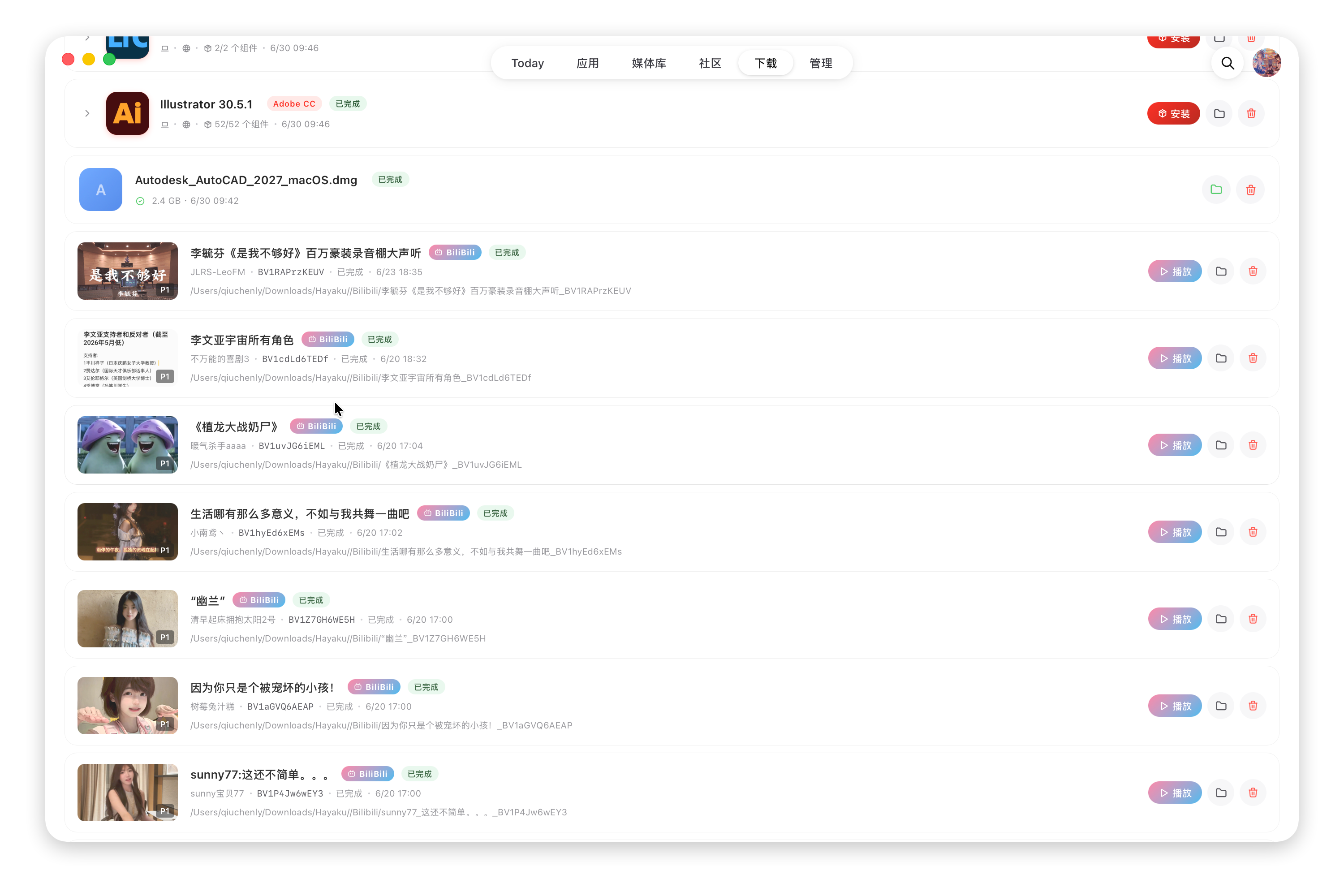
Log in to your Bilibili account, browse your favorites and collections, and download videos locally — all managed in the Downloads page, ready to play in the Native Video Player once finished.
Logging in
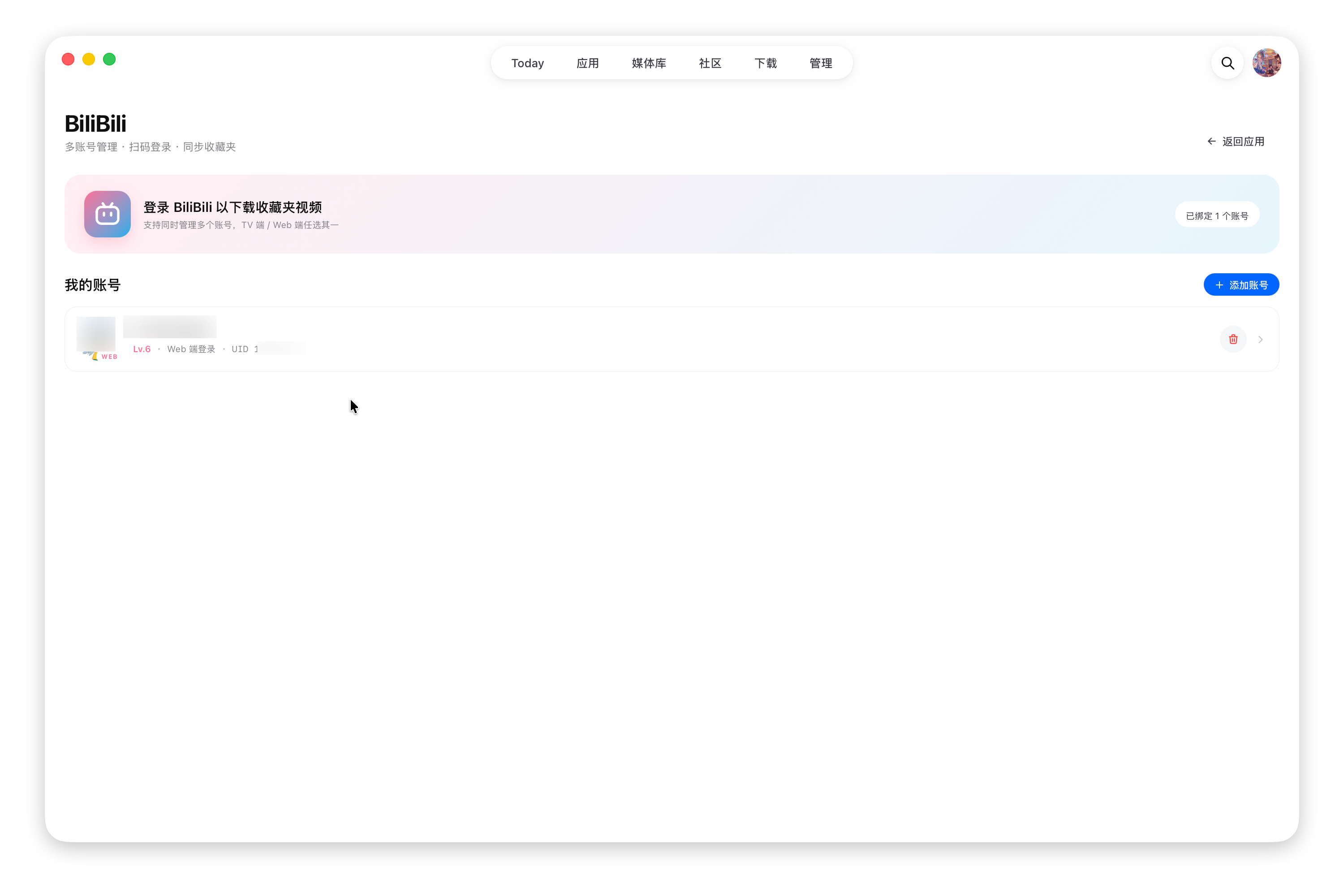
Open the Bilibili login page (multi-account management supported) and log in by scanning a QR code:
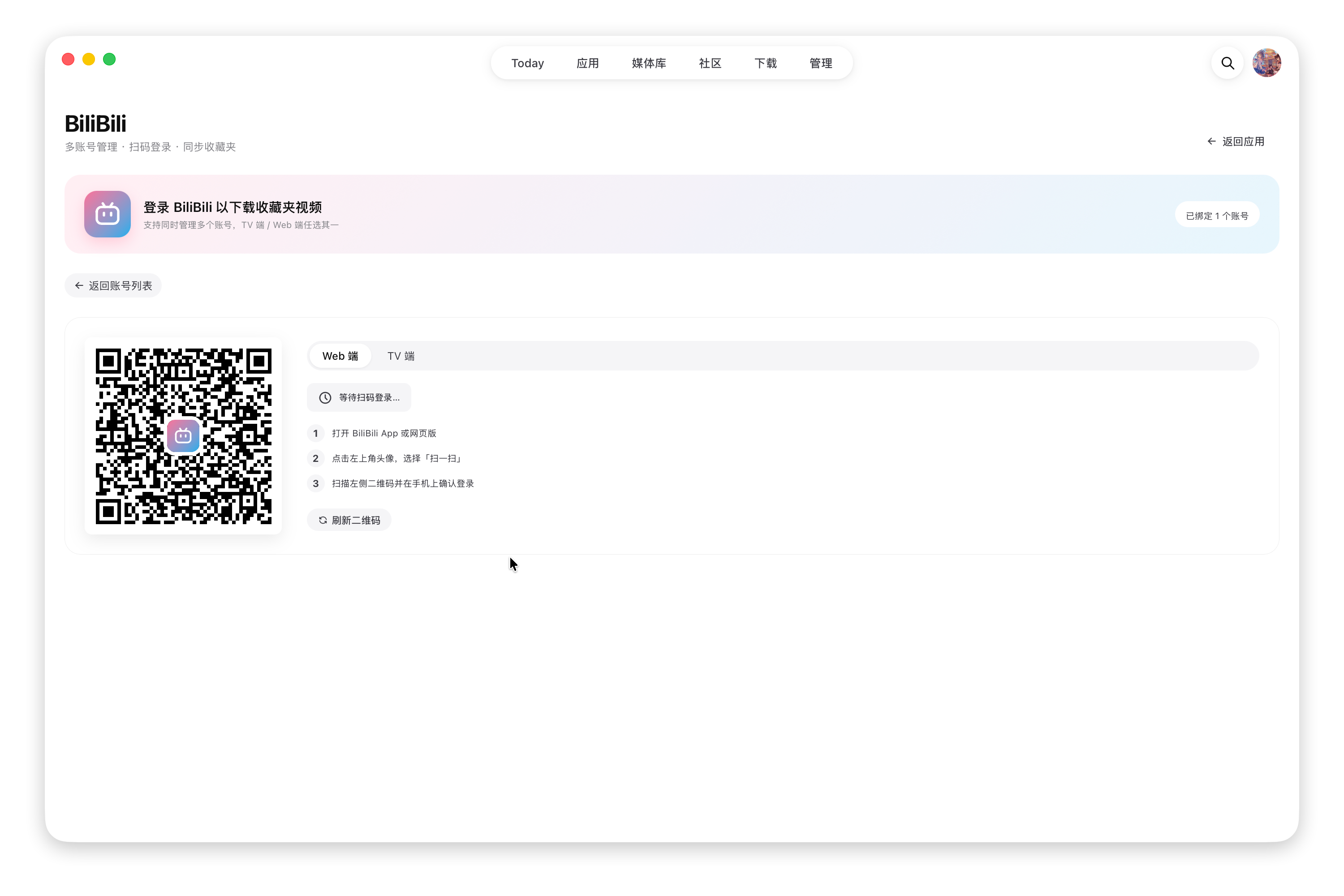
- Choose a login method: TV login or Web login
- Open the Bilibili client / App / website on your phone, tap your avatar in the top-left, and choose "Scan"
- Scan the on-screen QR code and confirm the login on your phone
If the QR code expires, refresh and retry. Logged-in accounts appear in the "My Accounts" list, where you can add or remove accounts at any time.
Browsing & downloading favorites
After logging in, the Bilibili profile page shows Following / Followers / Posts and two tabs:
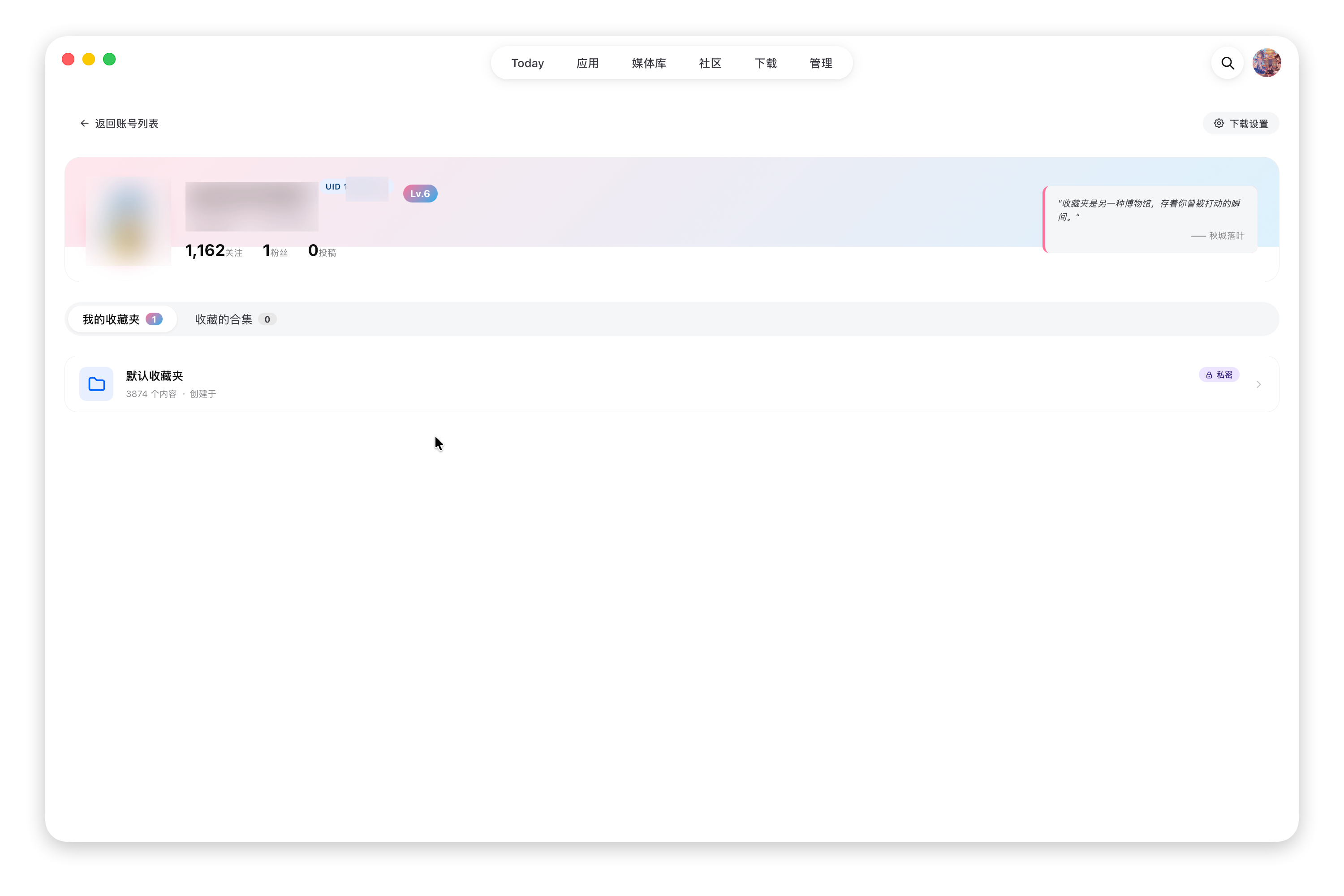
- My Favorites: each folder's item count, creation date, and public / private status
- Collected Series: collections you've saved
Open any favorites folder or collection to view its video list, then:
- Download a single video: click the download button on a video to queue it
- Download all locally: create download tasks for the entire folder / collection at once
- Play online: watch directly in the Native Video Player without downloading
Bulk-download with care
Due to Bilibili Web API limits, "Download all locally" fires a burst of parsing requests in a short window and can trip account/session rate-limiting, causing the requests to fail en masse. Download individually, as needed.
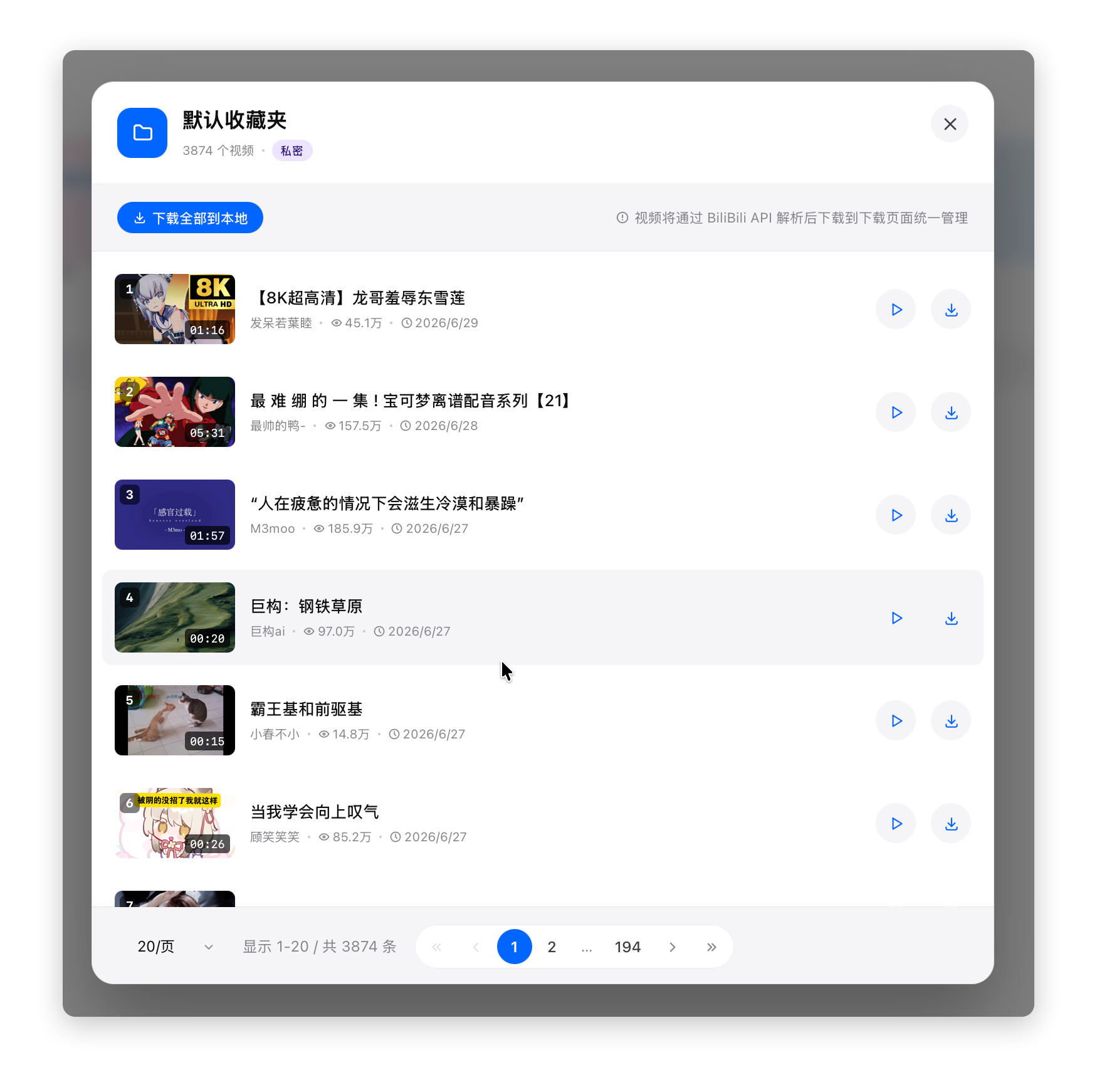
Videos are parsed via the Bilibili API and managed together in the Downloads page.
Download settings
Adjust download parameters in "Download Settings" at the top-right of the profile page (used as defaults for "Download" / "Download All"; high quality / lossless audio requires a Premium account and video support, and falls back automatically to the highest available tier):
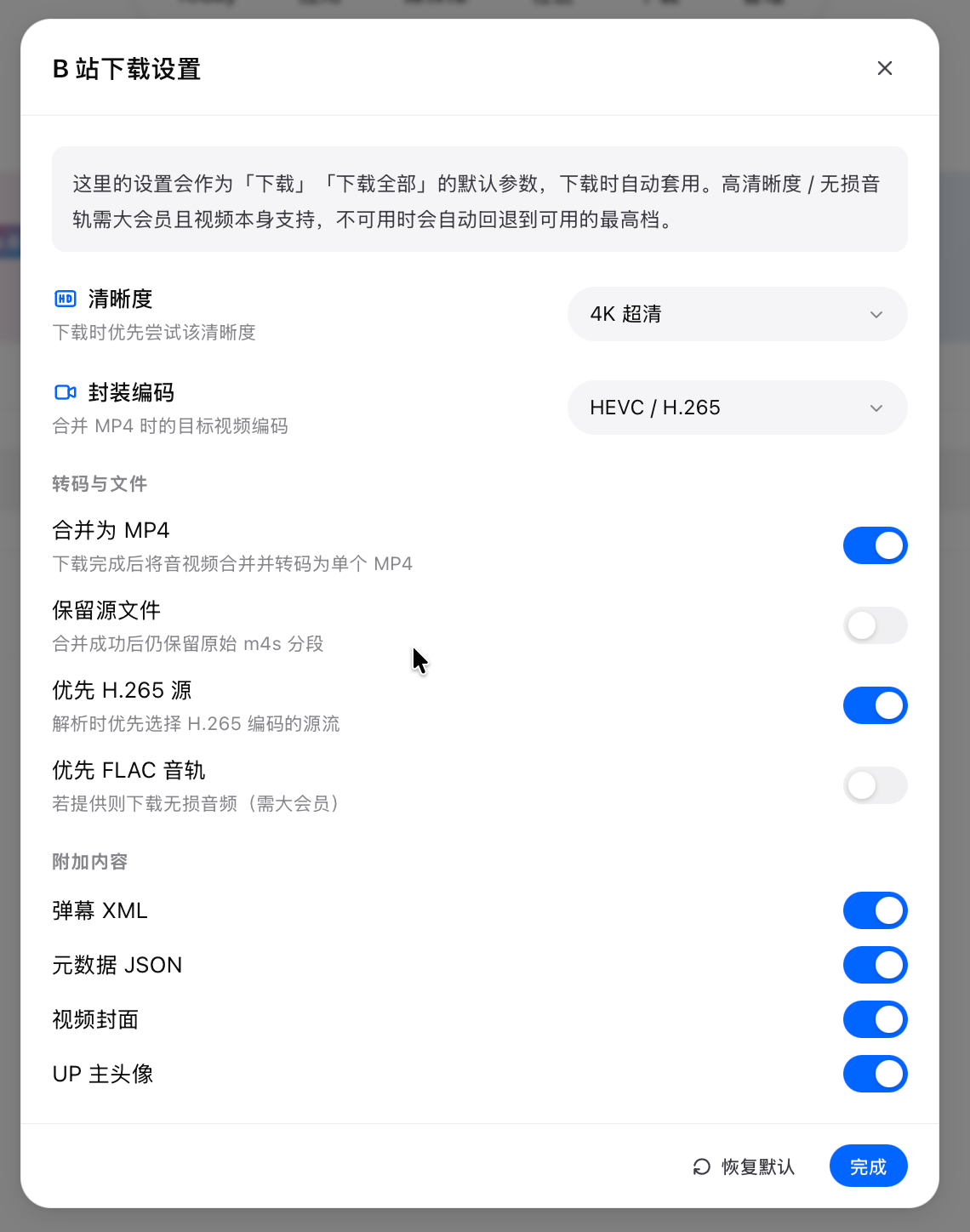
| Setting | Options |
|---|---|
| Quality | Auto highest / 8K / 4K / 1080P60 / 1080P high-bitrate / 1080P / 720P60 / 720P / 480P / 360P (default 4K) |
| Output codec | HEVC / H.265 (default, smaller) or H.264 / AVC (best compatibility) |
| Merge to MP4 | Merge and transcode audio + video into a single MP4 after download |
| Keep source files | Keep the original m4s segments after a successful merge |
| Prefer H.265 source | Prefer H.265-encoded source streams when parsing |
| Prefer FLAC audio | Download lossless audio when available (requires Premium) |
| Extras | Danmaku XML, metadata JSON, video cover, uploader avatar |
Download progress
The download card shows the current status (Queued / Downloading / Completed / Cancelled) and stage:
Parse metadata → Parse video stream → Download video → Download audio → Merge → Transcode
Once finished, click "Play" on the card to watch it in the Native Video Player; downloaded files also appear in the media library after their directory is scanned.