
Music Player
QiuChenly App Store has a built-in full-featured local music player that supports music library management, playback, lyrics display, and dynamic cover art backgrounds.
Looking for video?
This page covers the music player. The media library also includes a Native Video Player with danmaku, thumbnail preview, and episode playback.
Accessing the Music Player
Click the "Media Library" icon in the left navigation bar, or enter from the "Music" card on the home page.
Interface Layout
The music module uses an immersive full-screen layout (the top navigation bar auto-hides; move the mouse to the top to reveal it).
Sidebar Navigation
The music module has its own sidebar:
| Navigation Item | Corresponding Page |
|---|---|
| Home | Media library home: Hot Picks / Recommended for You / Music module |
| Search | Search songs / artists / albums |
| Music | Music library overview (albums / artists / tracks) |
| Manage | Media library management (add / scan music directories) |
Media Library Home
Displays the following content sections:
- Hot Picks: Trending content recommendations
- Recommended for You: Personalized recommendations based on playback history
- My Music: Quick access to music library
- Recently Played: Recently played tracks
- Frequently Played: Most played tracks (showing play count)
- You Might Like: Smart track recommendations
Music Library
The Music Library page (/media/music) contains four tabs:
Overview
Displays a statistical overview of artists, albums, and tracks.
Albums
- Displayed in an album cover grid
- Sort by: Recently Released / Name A-Z / Year New→Old / Year Old→New / Most Tracks
- Type filter: All Types / Album / EP / Single / Compilation
- Genre filter: All Genres / specific genre list
- Click an album to enter the album detail page
Artists
- Artist list (sorted by name)
- Click an artist to enter the artist detail page and view all albums and tracks by that artist
Tracks
- Complete track list (table view)
- Columns: Title / Album / Duration / Format
- Sort: Name A-Z / Duration Long→Short / Duration Short→Long
- Format filter: All Formats / FLAC / MP3 / AAC, etc.
- Click a track to start playback
Playback Controls
Mini Player Bar (Global Persistent)
A mini player bar is always displayed at the bottom of the app, uninterrupted across pages:
- Cover thumbnail: Left side shows the current track cover
- Track info: Track name - Artist
- Play/Pause button
- Previous/Next buttons
- Play mode toggle (single button, three-state cycle):
- Sequential: Stops after the playlist ends
- Shuffle: Randomly selects the next track
- Repeat One: Loops the current track
- Progress bar: Draggable for seeking
- Play queue: Click the list icon on the right to open the "Play Queue" panel (see Play Queue)
- Click the mini player bar to expand to the full playback page
Global Hotkeys
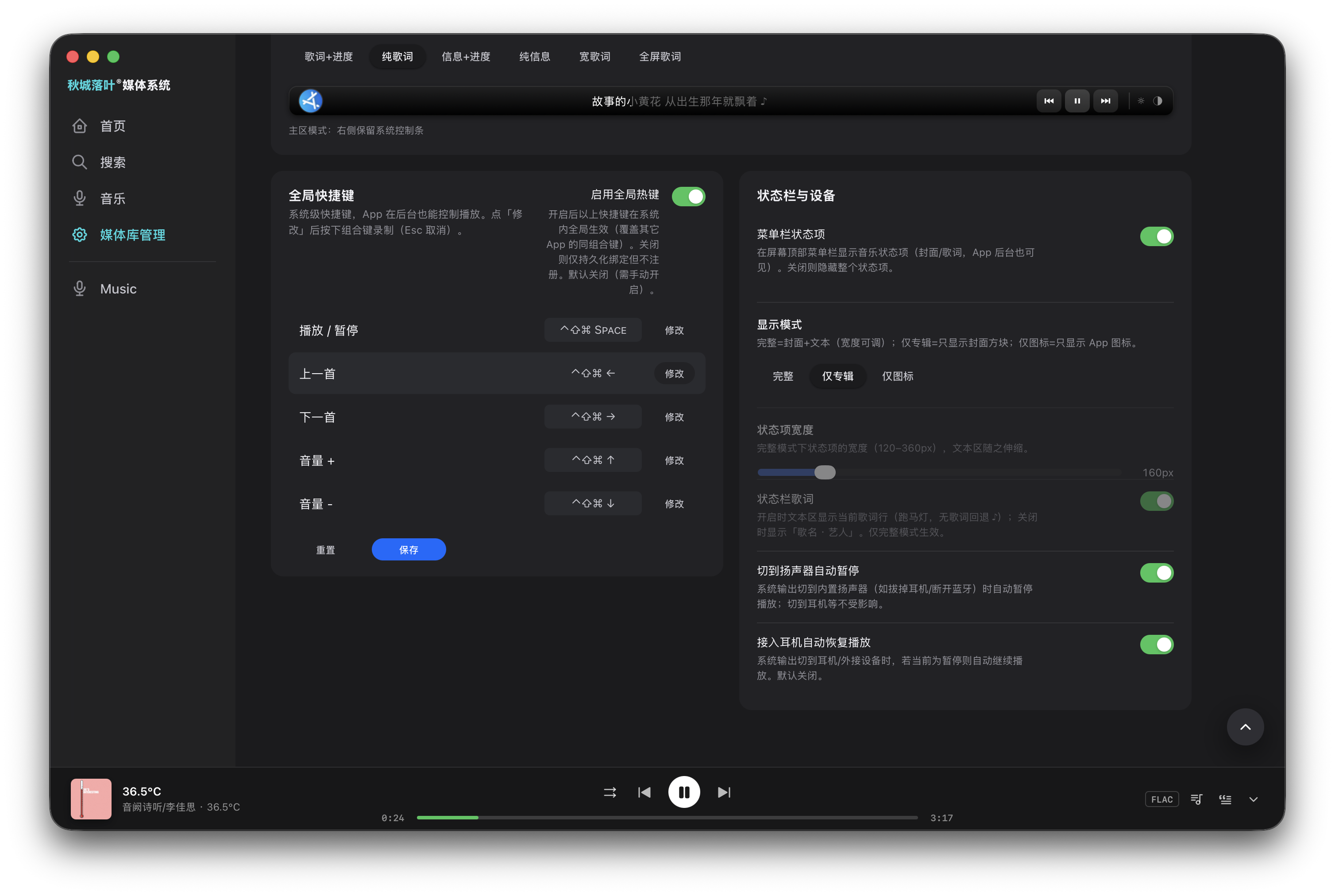
System-level hotkeys that can control playback even when the app is in the background. Enable and customize them in Manage → System Settings → Media Settings.
Must be enabled manually (off by default)
Global hotkeys have an "Enable Global Hotkeys" master switch that is off by default. Only when enabled do the hotkeys take effect system-wide (overriding the same combinations in other apps); when off, bindings are saved but not registered with the system.
| Action | Default Hotkey | How to Change |
|---|---|---|
| Play / Pause | ⌘ + Ctrl + Shift + Space | Click "Modify" and press the new key combination to record |
| Previous | ⌘ + Ctrl + Shift + ← | Same as above |
| Next | ⌘ + Ctrl + Shift + → | Same as above |
| Volume Up | ⌘ + Ctrl + Shift + ↑ | Same as above |
| Volume Down | ⌘ + Ctrl + Shift + ↓ | Same as above |
Default keys changed
The old default Ctrl + Option combination conflicted with the macOS VoiceOver modifier key and input source switching (Ctrl + Option + Space), causing hotkeys to be intercepted by the system. The new version uses the three-modifier ⌘ + Ctrl + Shift combination, which does not conflict with any system-level shortcuts. If you previously saved old hotkeys, they are automatically migrated to the new combination after upgrading.
Click "Modify" and press the keyboard combination to record a new hotkey (press Esc to cancel). The system automatically detects hotkey conflicts; if duplicates exist, you must resolve them before saving.
Play Queue
Click the list icon on the right of the mini player bar to open the "Play Queue" panel and view/manage the upcoming tracks.
- Queue source: Playing a single track makes the queue that one song; playing a whole album makes the queue all tracks of the album
- Current track highlighted: Opening the panel auto-scrolls to the currently playing track and smoothly follows as the track changes
- Click to jump: Click any row to jump and play that track immediately
- Remove a track: Hover a row and click the trash icon to remove it from the queue (removing the currently playing track automatically advances to the next, or stops when the queue is empty)
- Queue count: The panel header shows the number of tracks in the queue
Adding Songs to the Queue
On each row of the album detail page or the music library track list, hover to reveal two action buttons:
- Play Next: Inserts after the current track and plays once the current one finishes
- Add to Queue: Appends to the end of the queue without interrupting current playback
Lyrics Page
Click the mini player bar to enter the full-screen lyrics page.
Lyrics Features
- Auto-matching: Loads lyrics from local
.lrcfiles - Word-by-word highlighting: Lyrics are highlighted word by word in sync
- Dual styles: Two lyrics display styles (switch in settings)
- Native parsing: Lyrics parsing is done at the native layer, independent of the frontend
Cover Art Dynamic Background
The lyrics page background automatically picks colors from the album cover, producing a flowing gradient animation effect.
Audio Quality Markers
Audio quality markers are displayed at the top of the lyrics page:
- Master
- Dolby Atmos
Menu Bar Panel
Click the QiuChenly App Store icon in the macOS menu bar to open the "Now Playing" quick panel:
- Large album cover art
- Track/Artist/Album info
- Play/Pause, Previous/Next
- Lyrics preview (current line)
- Volume control
Status Bar Lyrics
Displays the music status item (album cover art / lyrics) in the top menu bar of the screen (visible even when the app is in the background). You can toggle the entire status item on/off in Media Settings, and further adjust:
- Display mode (three options):
- Full: Cover + text (adjustable width)
- Album Only: Shows only the cover square
- Icon Only: Shows only the app icon
- Status item width: In Full mode, adjustable between 120–360px; the text area stretches accordingly
- Status bar lyrics (independent toggle): When on, the text area shows the current lyric line (marquee, falling back to ♪ when no lyrics are available); when off, it shows "Track name · Artist". Only takes effect in Full mode
Touch Bar Lyrics Strip
If your Mac is equipped with a Touch Bar, it can take over the Touch Bar to display a lyrics strip, which remains visible even when switching to other apps.
Display Modes:
- Off: Do not take over Touch Bar
- Main Area: Lyrics in the main area; system brightness/volume control strip retained on the right
- Full Width: Lyrics fill the entire Touch Bar
Layout Presets:
- Lyrics + Progress: Cover + word-by-word lyrics + draggable progress bar
- Lyrics Only: Cover + word-by-word lyrics (no progress bar, wider lyrics)
- Info + Progress: Cover + track name · artist · album + progress bar
- Info Only: Cover + track name · artist · album (no progress bar)
- Wide Lyrics: No cover + word-by-word lyrics + progress bar (larger lyrics area)
- Full-screen Lyrics: No cover + pure word-by-word lyrics, full width
Auto Pause/Resume
- Auto-pause on speaker switch: Automatically pauses playback when system output switches to built-in speakers (e.g., unplugging headphones/disconnecting Bluetooth)
- Auto-resume on headphone connect: When system output switches to headphones/external devices, automatically resumes playback if currently paused (disabled by default)
System Integration
QiuChenly App Store integrates with the macOS system media API:
- Control Center: Displays current playback information
- Lock Screen: Displays album cover art and playback controls
- AirPods and other headphones: Inline remote control
- Touch Bar: Playback controls
Close Without Quitting (Background Resident)
Clicking the red close button at the top-left of the window no longer quits the app — instead it hides the window: music keeps playing in the background, and the menu bar / status bar lyrics and global hotkeys remain available.
- Bring it back: Click the Dock icon, or reopen the app, to restore the window
- Quit completely: Use
⌘ Q, the "Quit" menu item, or right-click the Dock icon → "Quit"
Playback History & Recommendations
- Valid play count: Only listening for at least 15 seconds counts as a valid play
- Playback history: Records all played tracks
- Frequently played: Sorted by play count
- You might like: Smart recommendations based on playback history
- Play count: Each track shows play count ("Played {n} times")
Media Library Management
Click "Manage" in the music sidebar to enter.
Add Music Directory
- Click "Add Directory"
- Select a folder containing music files
- The system automatically scans: identifies audio files, reads metadata (title, artist, album, cover art), calculates duration
Storage Card Management
- View disk space usage by music directory
- Remove unwanted directories
- Re-scan to update the library
Supported Audio Formats
| Format | Extensions | Description |
|---|---|---|
| MP3 | .mp3 | Lossy compression, most universal |
| FLAC | .flac | Lossless compression, recommended |
| AAC | .m4a .aac | Apple format |
| ALAC | .m4a .alac | Apple Lossless |
| WAV | .wav | Uncompressed |
| AIFF | .aiff .aif | Apple uncompressed |
| OGG | .ogg | Open-source lossy |
| WMA | .wma | Windows format |
Player Settings
Configurable in Manage → System Settings → Media Settings:
- Lyrics page style: Switch between two styles
- Global hotkeys: Master switch (off by default) + customizable keys for Play/Pause, Previous, Next, Volume Up, Volume Down
- Menu bar status item: Toggle + display mode (Full / Album Only / Icon Only) + width adjustment (120–360px)
- Status bar lyrics: Independent lyrics display toggle (shows only "Track name · Artist" when off)
- Touch Bar lyrics strip: Display mode and layout preset
- Auto pause/resume: Automatic behavior when switching output devices