
Installation & Setup
Download Package
Method 1: GitHub Releases (Recommended)
- Open the GitHub Releases page
- Find the latest version (tag format
1.0.57.20250601...) - Download
QiuChenAppStore.dmg
Method 2: Telegram Channel
- Open the Telegram channel @qiuchenlymac
- Search for the
#Releasetag to get the latest package
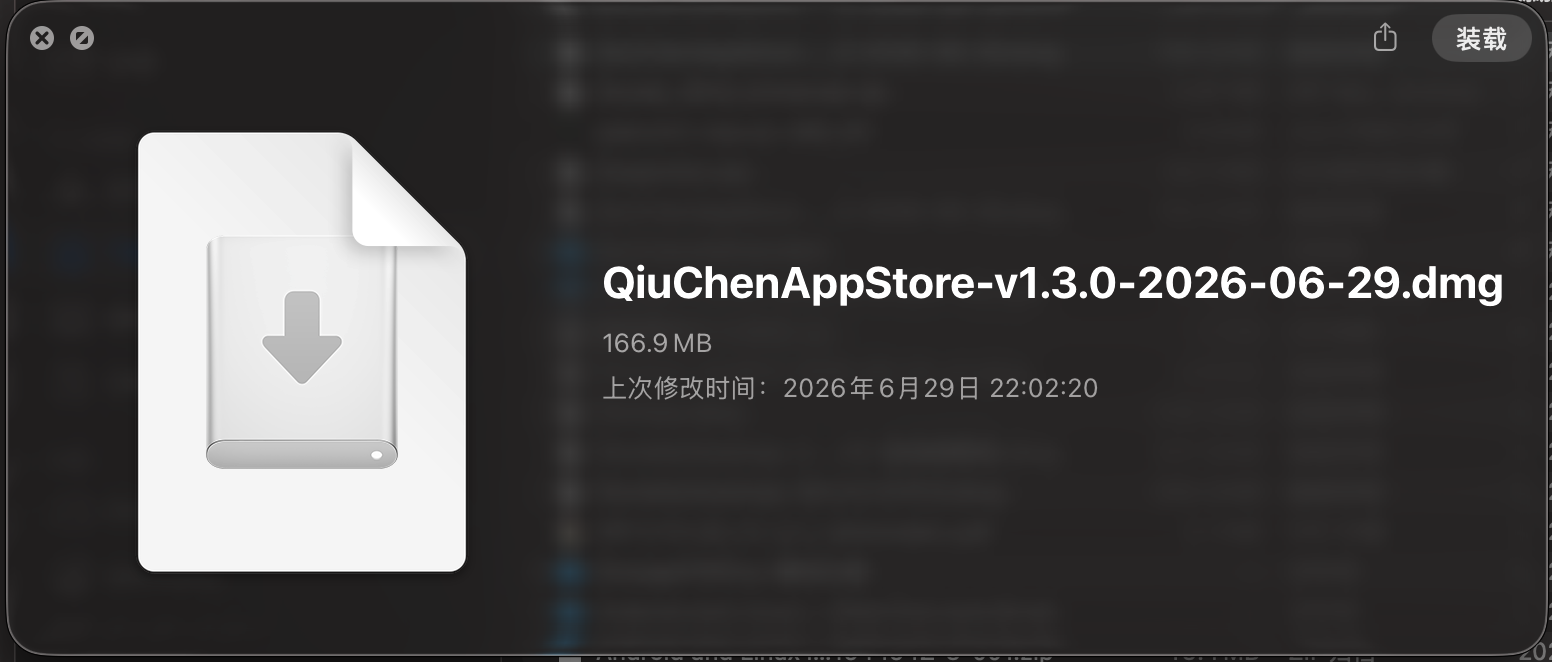
After downloading you will get a DMG package (the file name looks like QiuChenAppStore-v1.3.0-2026-06-29.dmg):
Installation Steps
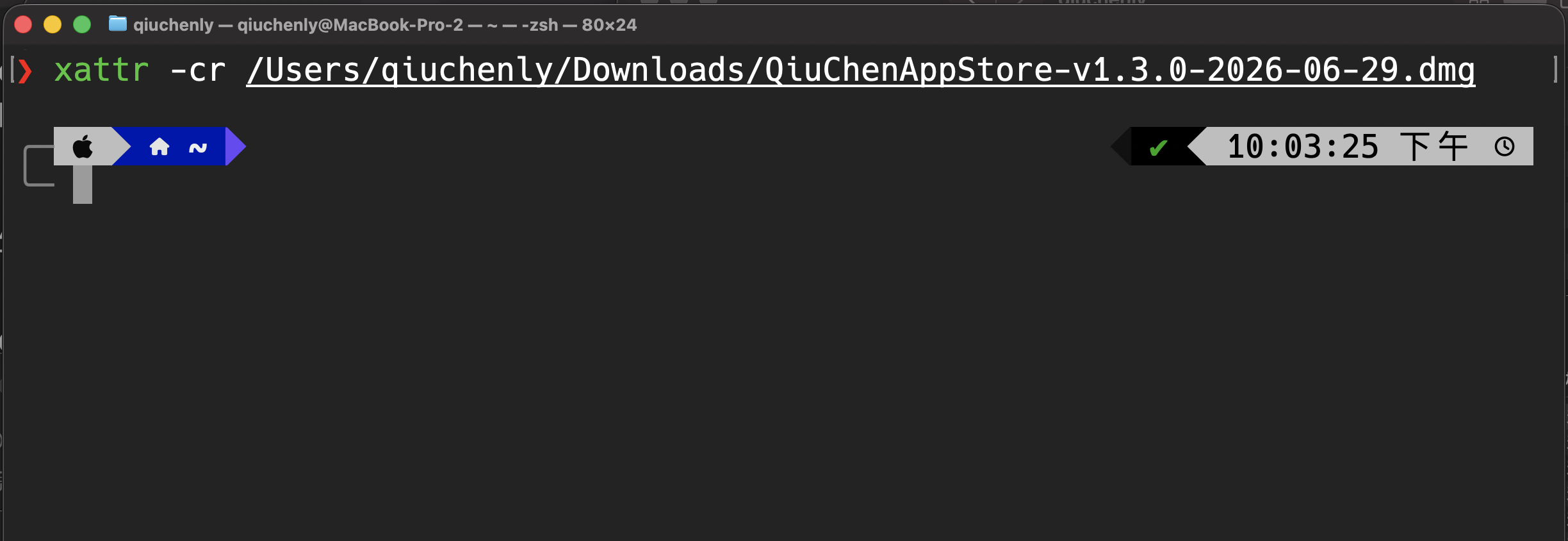
Step 1: Remove Quarantine Attribute
macOS marks files downloaded from the internet as "quarantined". You must clear this first:
- Open Terminal (in
Launchpad→Other→Terminal, or press⌘ + Spaceand search forTerminal) - Enter the following command (replace the path with your actual path):bash
xattr -cr /Volumes/QiuChenAppStore/QiuChenAppStore.dmg
Tip: You can also drag the dmg file directly into the terminal window and the path will be filled in automatically.
Step 2: Mount DMG and Install
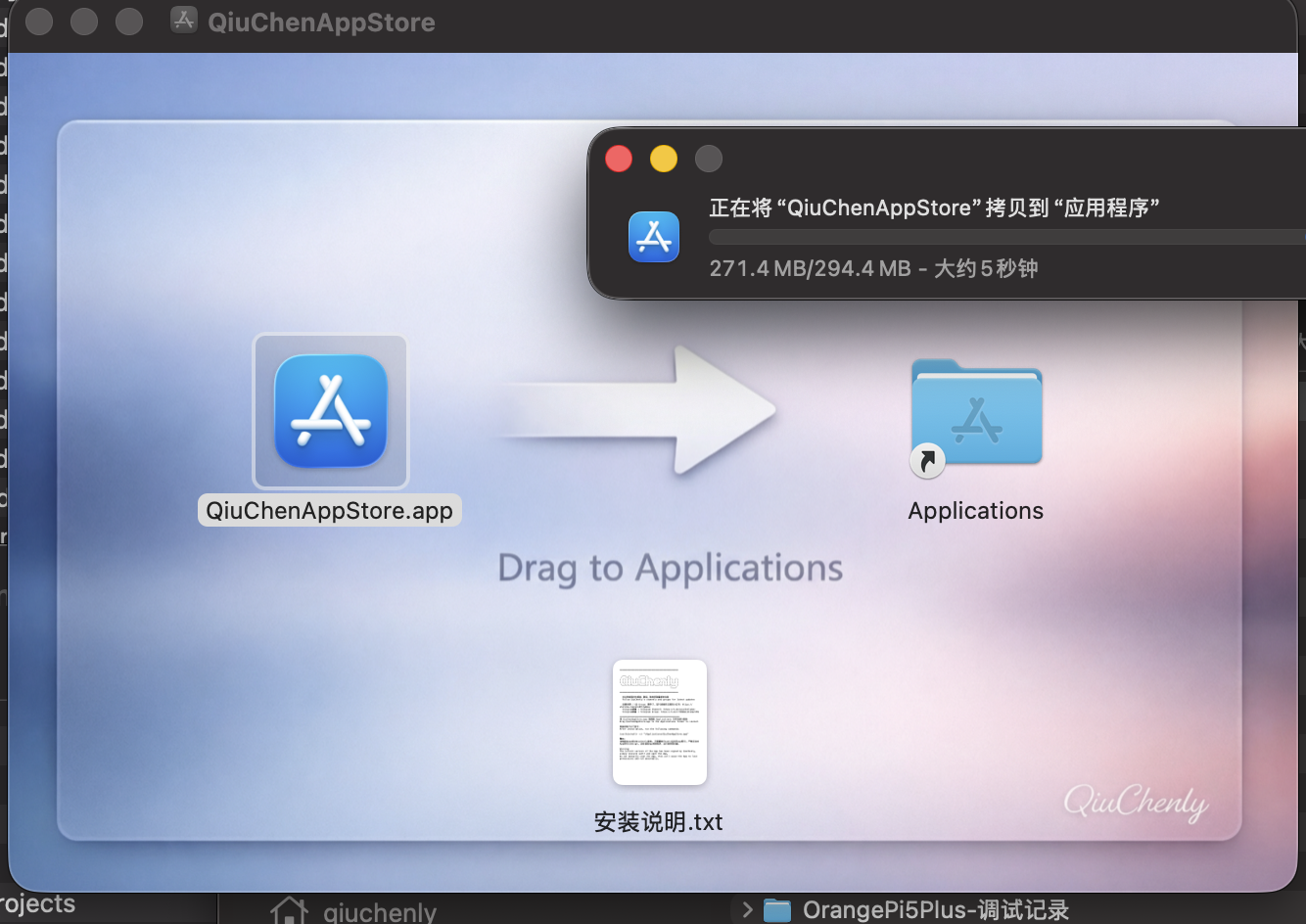
- Double-click the
.dmgfile. A mounted disk will appear on the desktop or in the Finder sidebar. - Drag
QiuChenAppStore.appinto theApplicationsfolder. - Wait for the copy to complete (approximately 5-10 seconds).
Step 3: First Launch
- Open Launchpad (pinch with four fingers on the trackpad, or press
F4) - Click the
QiuChenAppStoreicon - On first launch, a system security prompt will appear. Click "Open".
If you see "Cannot verify developer"
Go to System Settings → Privacy & Security → scroll to the bottom, and click "Open Anyway".
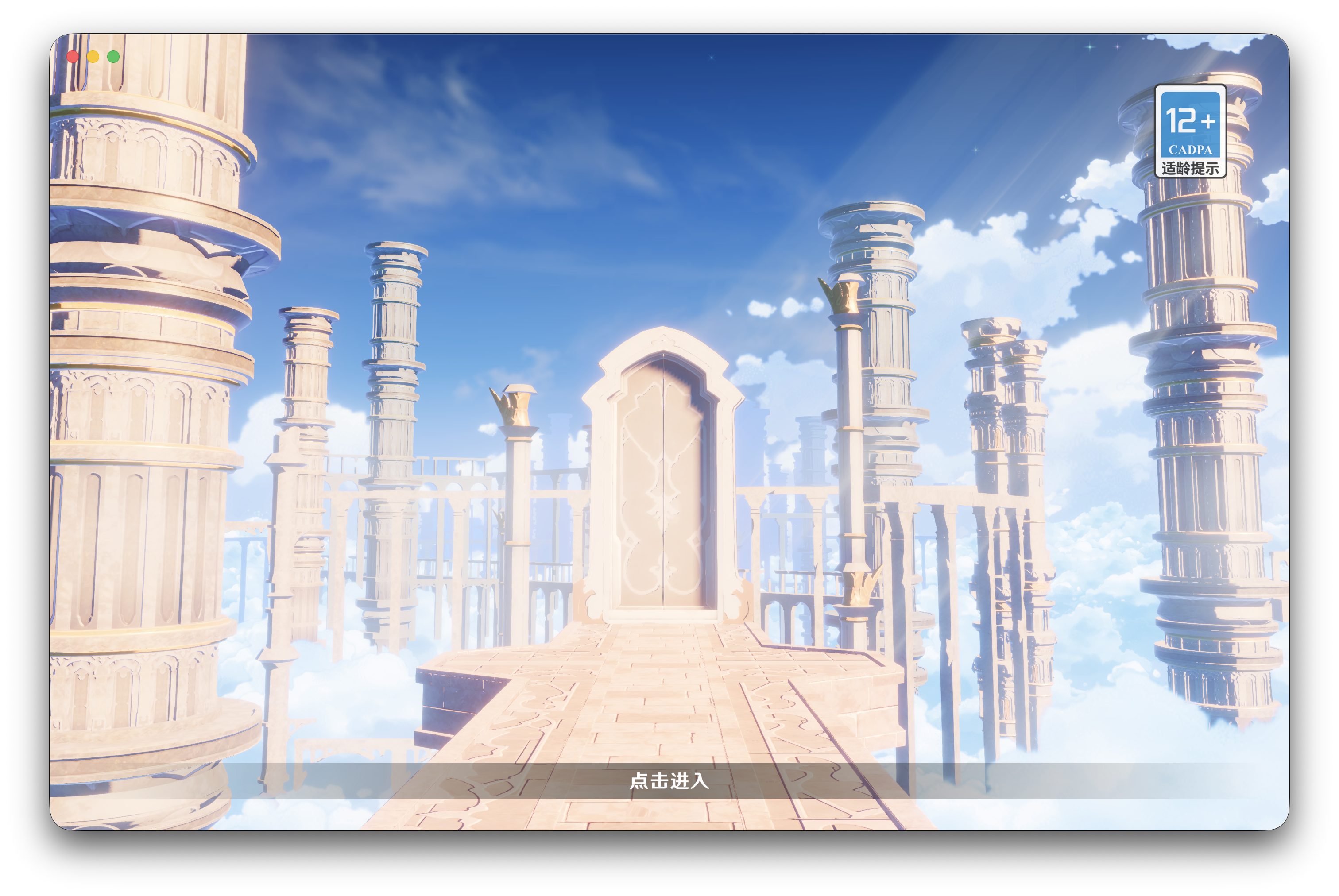
On first launch the app plays a Genshin-style WebGL opening animation:
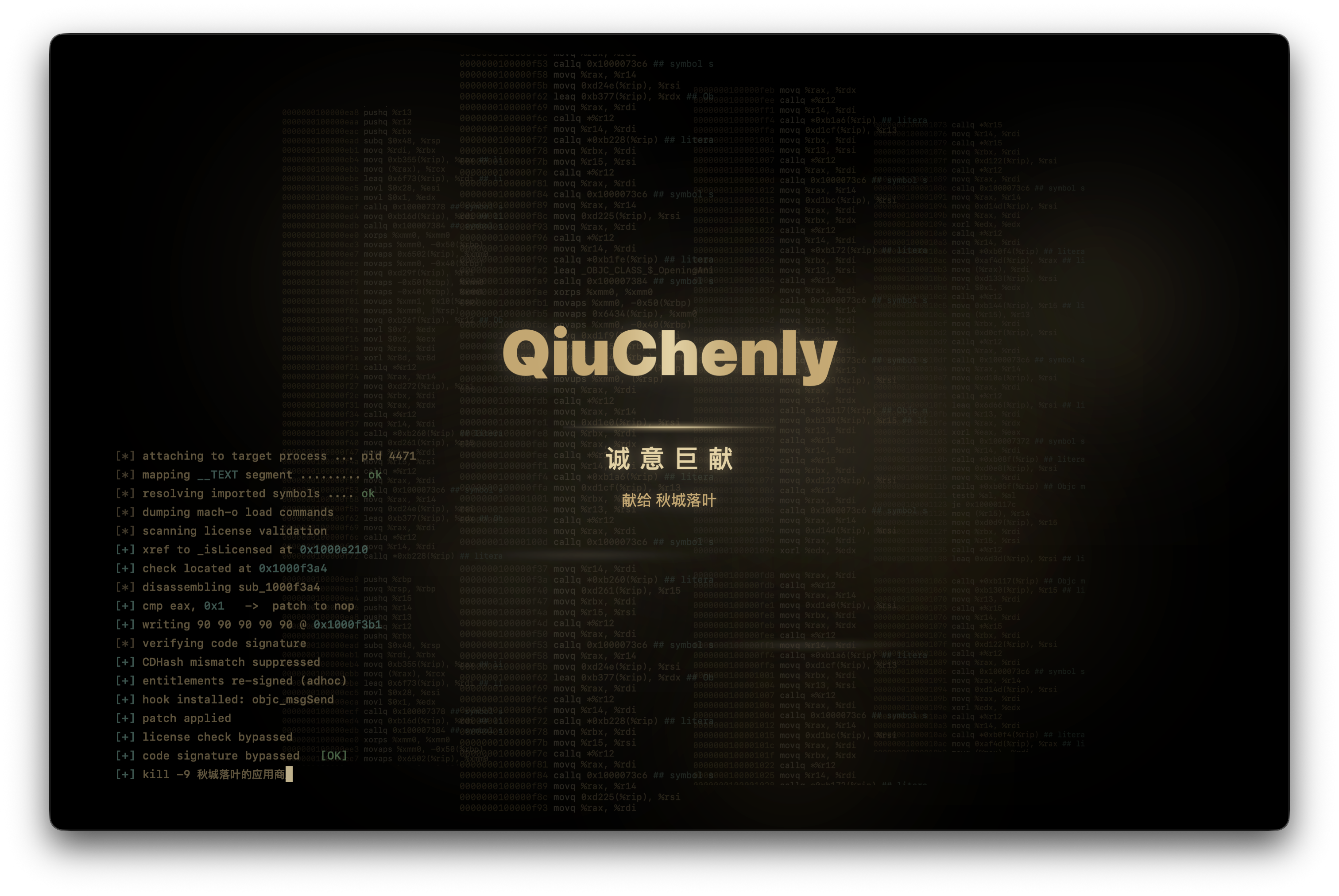
Click "Tap to Enter" in the door animation to enter the app:
Step 4: Install Daemon
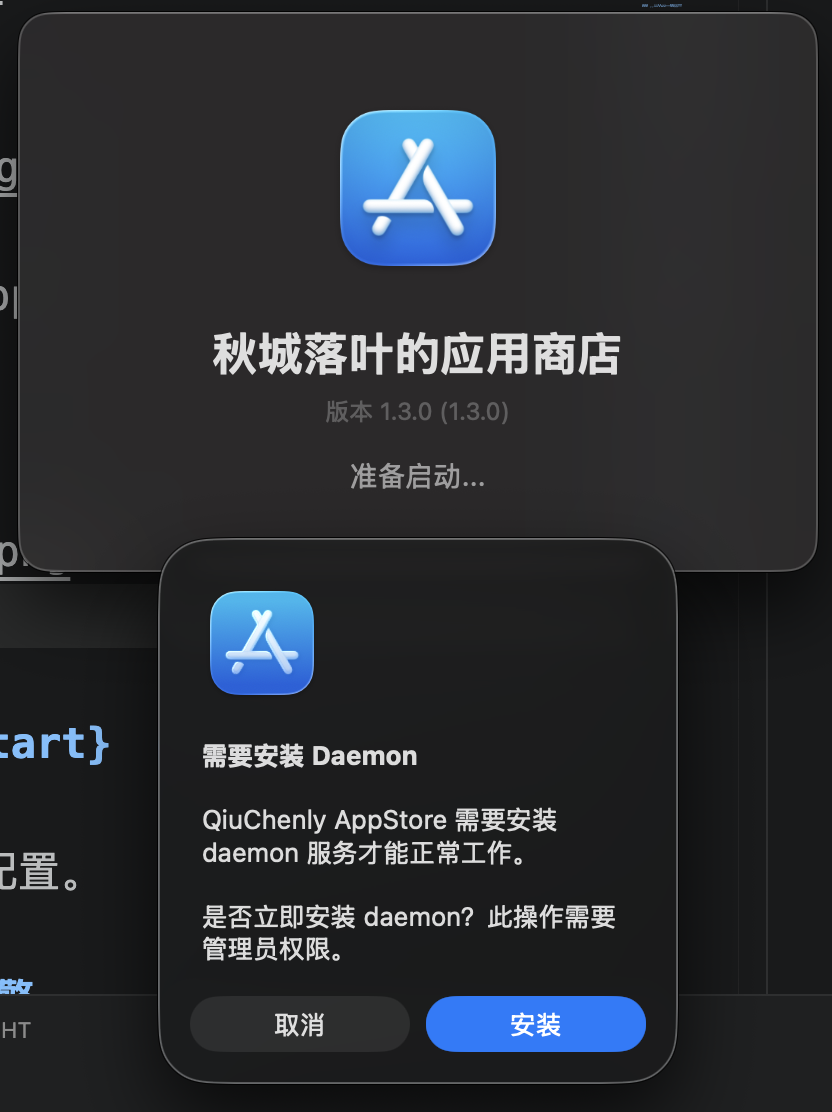
After the first launch, the app will automatically display a daemon installation wizard:
- Enter your Mac login password in the dialog
- Click "Install"
- Wait for the progress bar to complete (approximately 5-15 seconds)
- Once installed, all feature modules will appear on the left side
The daemon (QiuChenlyDaemon) is a background service responsible for:
- Scanning installed applications
- Performing app injection
- Managing download tasks
- Providing music playback service
- Running the network proxy engine
Step 5: Grant Permissions
On first use, you need to grant two critical permissions:
Full Disk Access:
- Click the "Open System Settings" button on the guide page
- In Privacy & Security → Full Disk Access
- Enable the toggles for
QiuChenAppStoreandQiuChenlyDaemon - Enter your password to confirm
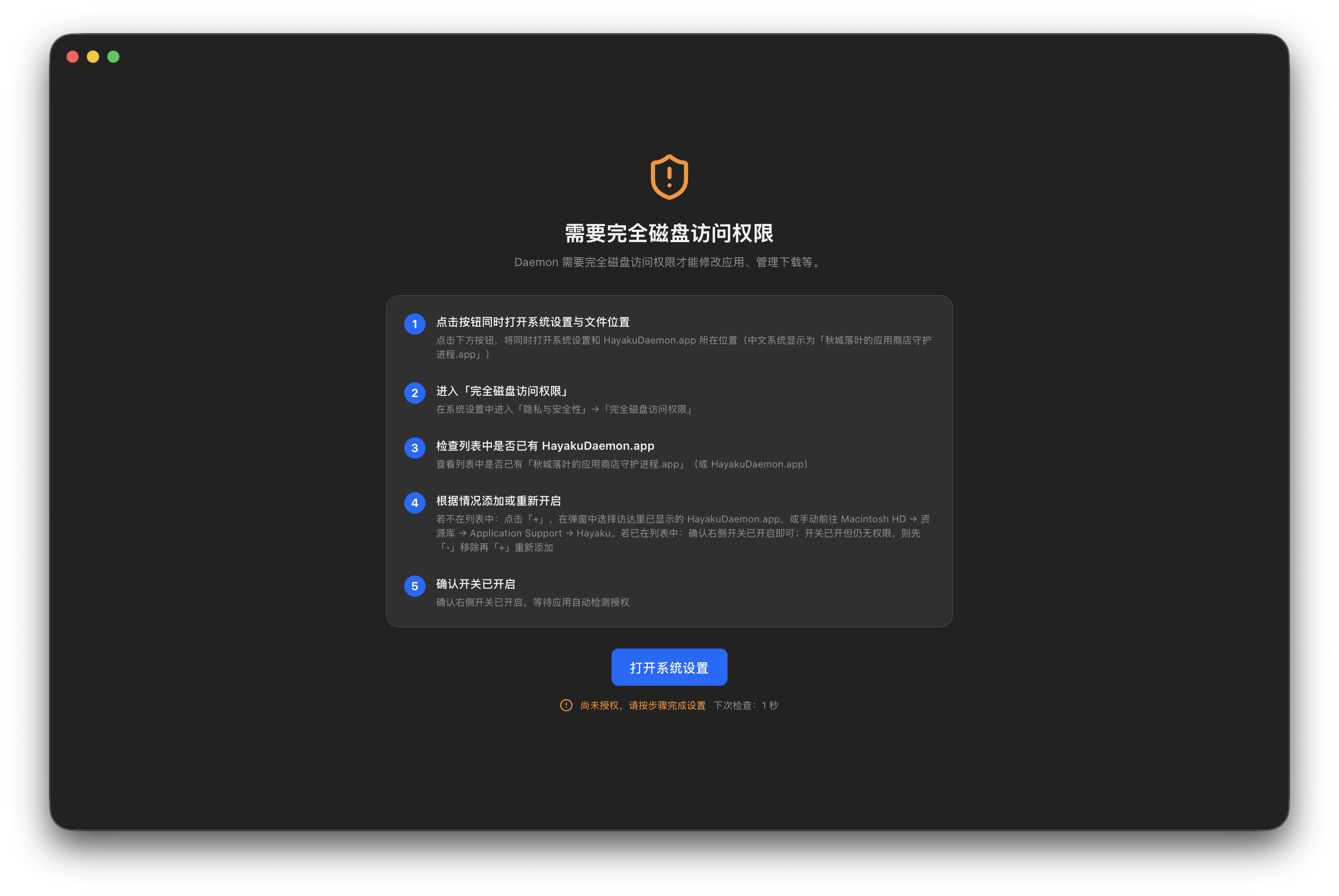
The app opens System Settings and the file location at the same time. Enable "QiuChenly App Store Daemon.app" (i.e. HayakuDaemon.app) in the list. If prompted to quit, choose "Quit & Reopen":
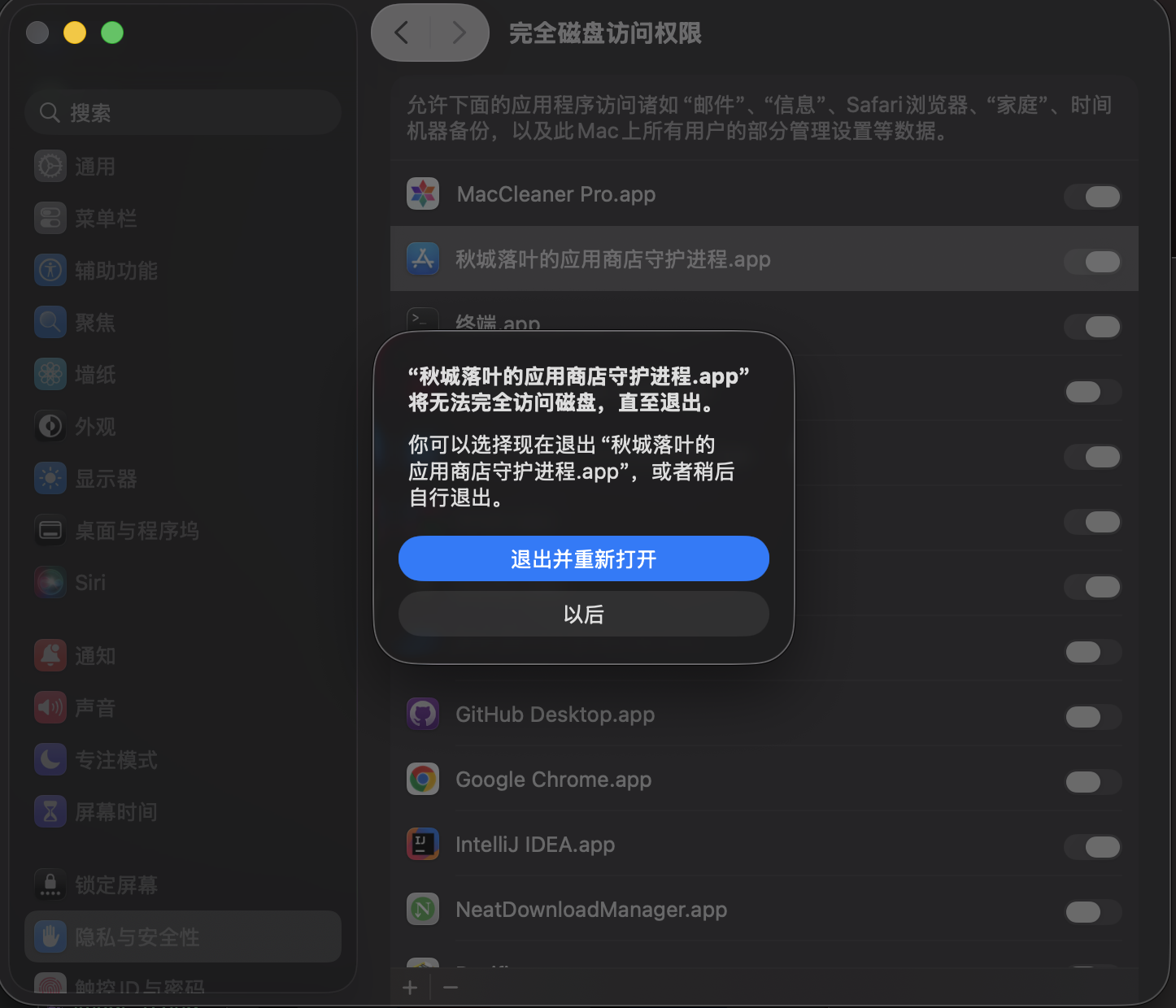
Can't find the daemon in the list?
Click "+" to add it manually: go to Macintosh HD → Library → Application Support → Hayaku and select HayakuDaemon.app. If the toggle is on but access still fails, remove it with "−" and add it again with "+".
App Management (macOS 14+):
- In Privacy & Security → App Management
- Enable the toggles for
QiuChenAppStoreandQiuChenlyDaemon
Setup Wizard
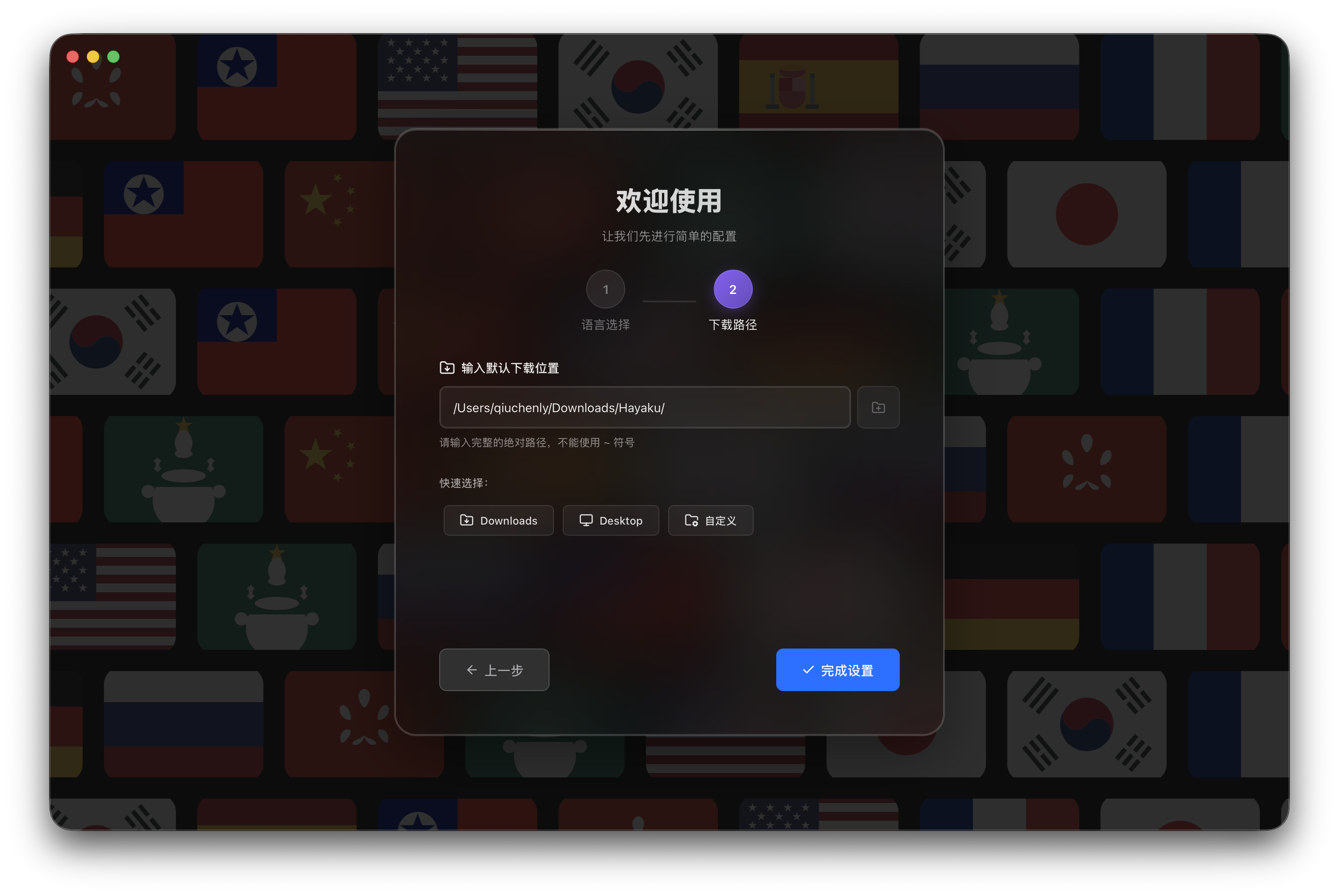
After completing permission authorization on first launch, you will enter the setup wizard:
- Language Selection: Choose the interface language from the dropdown (default: follow system)
- Download Path: Set the default download location (must be a full absolute path;
~is not allowed) - Click "Finish Setup" to enter the main interface
Launchpad Integration
QiuChenly App Store provides a custom launchpad (experimental feature):
- Enable it in Manage → System Settings → Experimental Features
- Once enabled, it takes over
⌘ + Spaceand four-finger gestures - Quickly search for apps and execute commands
Updating the App
QiuChenly App Store supports automatic update checking:
- Go to Manage → System Settings → Update
- Enable "Check for updates automatically"
- Set the check interval (1-1440 minutes)
- Select the update channel: Stable or Include beta
When a new version is available, a "{n} app(s) have new versions" notification will appear at the top of the home page. Click to update.
Daemon Management
The daemon (HayakuDaemon) is the background service of QiuChenly App Store, responsible for core features such as app scanning, injection, download management and music playback.
Process name: HayakuDaemon Bundle ID: com.qiuchenly.hayaku.daemon Install path: /Library/Application Support/Hayaku/HayakuDaemon.app
Check Status
Run in Terminal:
launchctl list | grep hayakuIf the daemon is running normally, it will show the process ID and status. You can also open Activity Monitor and search for HayakuDaemon to confirm the process exists.
Restart the Daemon
# Stop
sudo launchctl bootout system/com.qiuchenly.hayaku.daemon

# Start
sudo launchctl bootstrap system /Library/LaunchDaemons/com.qiuchenly.hayaku.daemon.plist
sudo launchctl kickstart -k system/com.qiuchenly.hayaku.daemon
Force Uninstall the Daemon
sudo launchctl unload /Library/LaunchDaemons/com.qiuchenly.hayaku.daemon.plist
sudo rm -rf "/Library/Application Support/Hayaku"
sudo rm -f /Library/LaunchDaemons/com.qiuchenly.hayaku.daemon.plist
sudo tccutil reset All com.qiuchenly.hayaku.daemon
After uninstalling, reopening QiuChenAppStore will automatically prompt you to reinstall it.
Reset TCC Permissions
If permissions are misbehaving (e.g. cannot access disk), reset the system permission grants:
sudo tccutil reset All com.qiuchenly.hayaku.daemonAfter running this, you must re-grant permissions in System Settings → Privacy & Security.
Viewing Logs
Daemon Logs
Daemon logs are written to /var/log/ and /tmp/:
# Tail the log in real time
tail -f /var/log/hayaku_daemon.log

# View the error log
cat /var/log/hayaku_daemon_error.log

# Tail the temporary log
tail -f /tmp/HayakuDaemon.log
Console Logs
Open the macOS Console app (in Applications/Utilities) and search for hayaku or QiuChenly to see all related system logs.
HTTP API Port
The daemon provides an HTTP API on local port 15200. You can visit http://localhost:15200 in a browser to verify the service responds normally.
Troubleshooting
| Issue | Solution |
|---|---|
| "File is damaged" on open | Run xattr -cr /Applications/QiuChenAppStore.app |
| Daemon installation failed | Make sure Full Disk Access is granted, restart Mac and try again |
| Apps not detected | Check whether Full Disk Access is enabled |
| App crashes after injection | Confirm SIP is enabled, check whether the app version is in the supported list |
| Cannot connect to daemon | Check status with launchctl list | grep hayaku; if absent, restart the daemon |
| Injection/download errors | Check the Daemon logs to pinpoint the cause |