
Adobe
FAQs
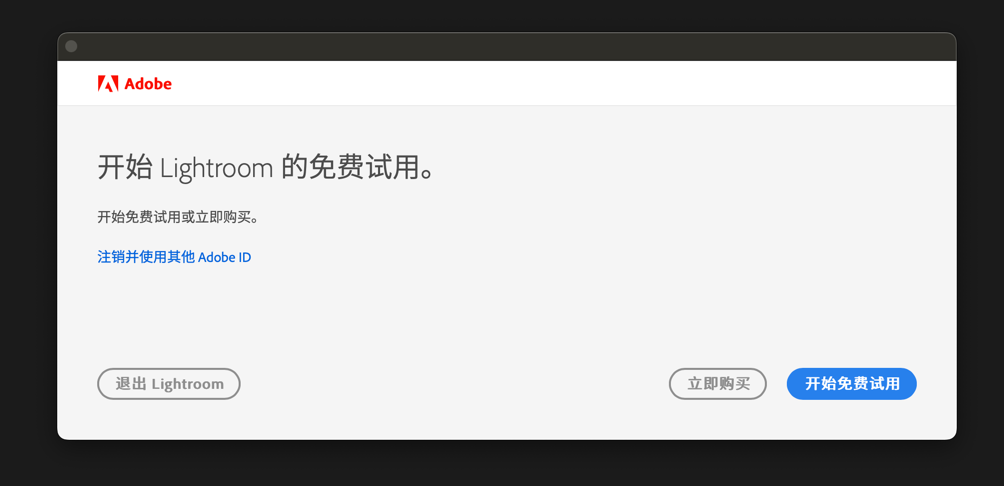
Q1: Adobe PS CC / Lightroom CC crashes on startup
If you see this image, it means the injection failed or you are logged into your own account. Sign out of your account first.
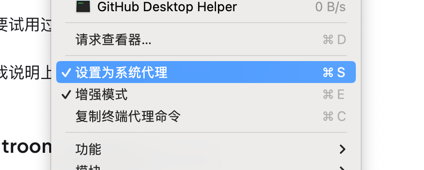
Q2: Lightroom says "Cannot search when offline"
This is a potential bug that will be fixed later.
Q3: "Wants to access the key in your keychain"?
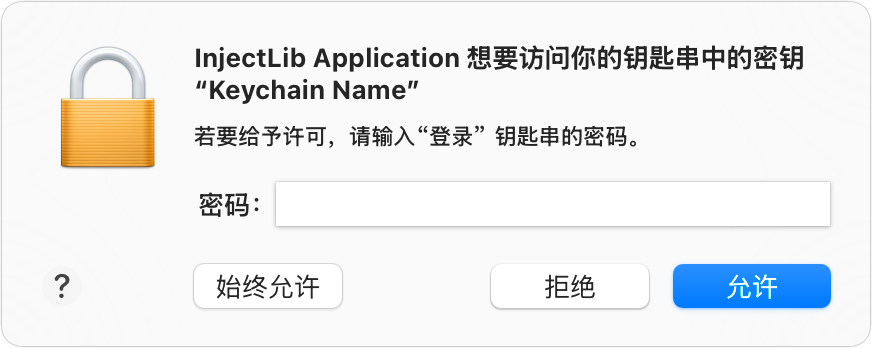
This is the app's own data. Due to the signature mismatch after re-signing, enter your user password and click "Always Allow".
Q4: Which version should I install?
Install the latest version directly from the official Adobe CC cloud, or go to the official website to search for an offline installer.
Q5: Should I install Adobe Genius Service?
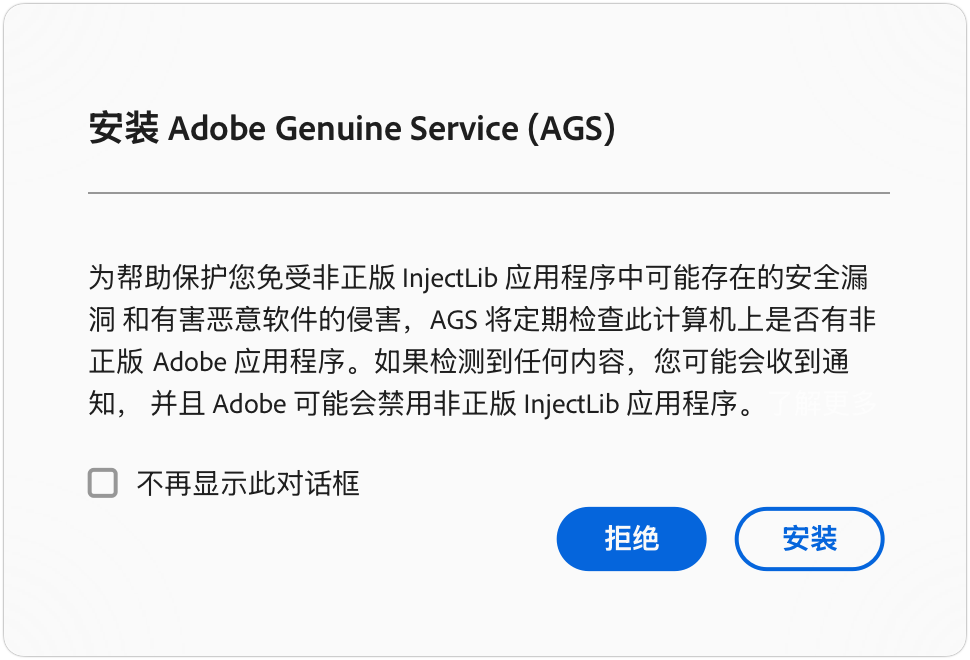
Check "Don't show this dialog again"
Select "Decline"
Q6: "This non-genuine app" popup
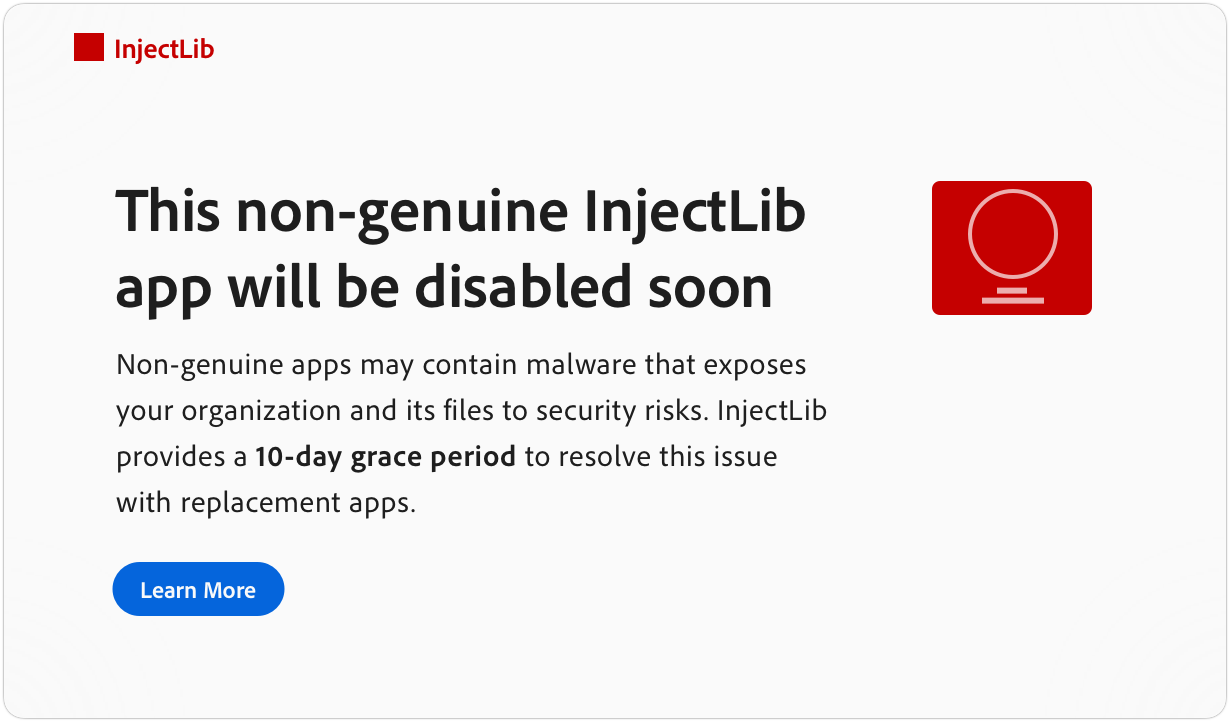
This issue has been fixed long ago. If you still encounter it, it means you are not using the latest version.
Q7: Apple cannot verify that "InstallAdobe.command" does not contain malware that may harm your Mac or compromise your privacy.
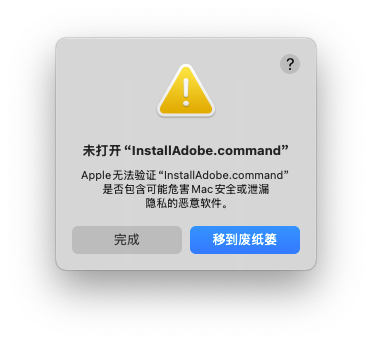
This is caused by scripts downloaded from the internet.
Solution:
- Click Done
- Open Settings
- Go to Security & Privacy
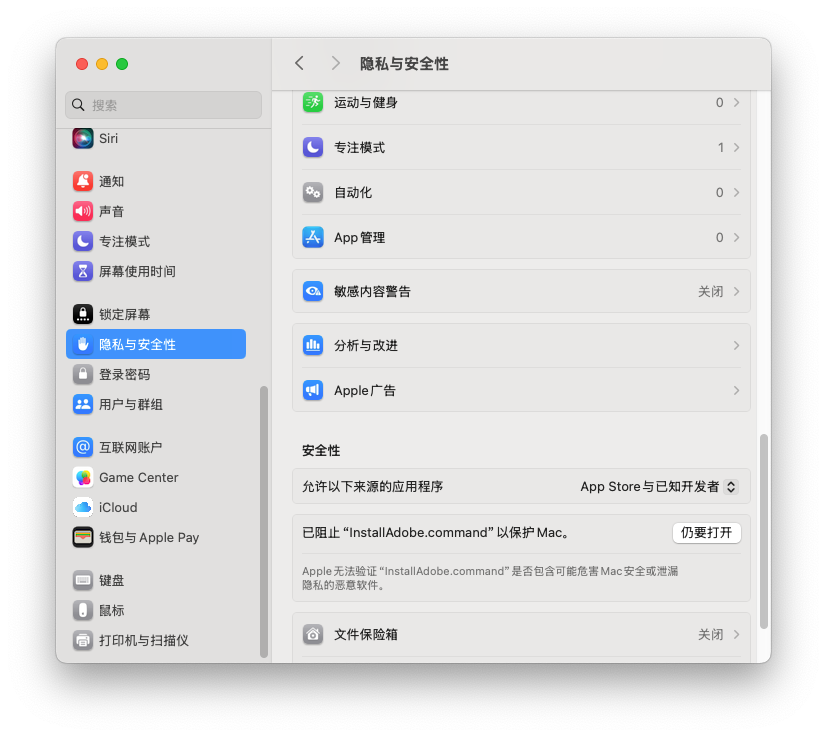 Click "Open Anyway"
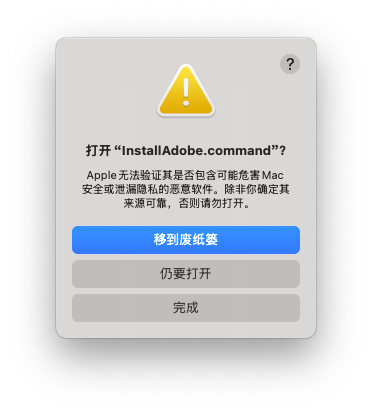 The prompt says "Apple cannot verify that it does not contain malware that may harm your Mac or compromise your privacy. Do not open it unless you are certain it comes from a trusted source." Ignore it and click "Open Anyway"
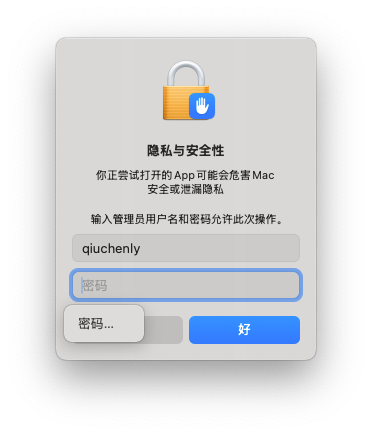 Enter your macOS password to authenticate.
Q8: "Adobe After Effects 2025" is damaged and cannot be opened. | "xxx" is damaged and cannot be opened.
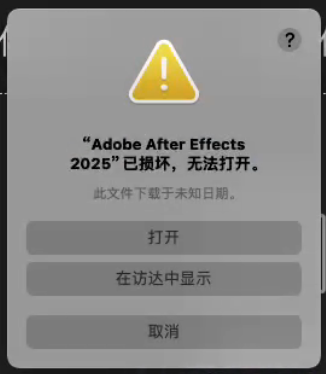
As shown, this is caused by macOS system security checks.
Solution:
- Click the Open button.
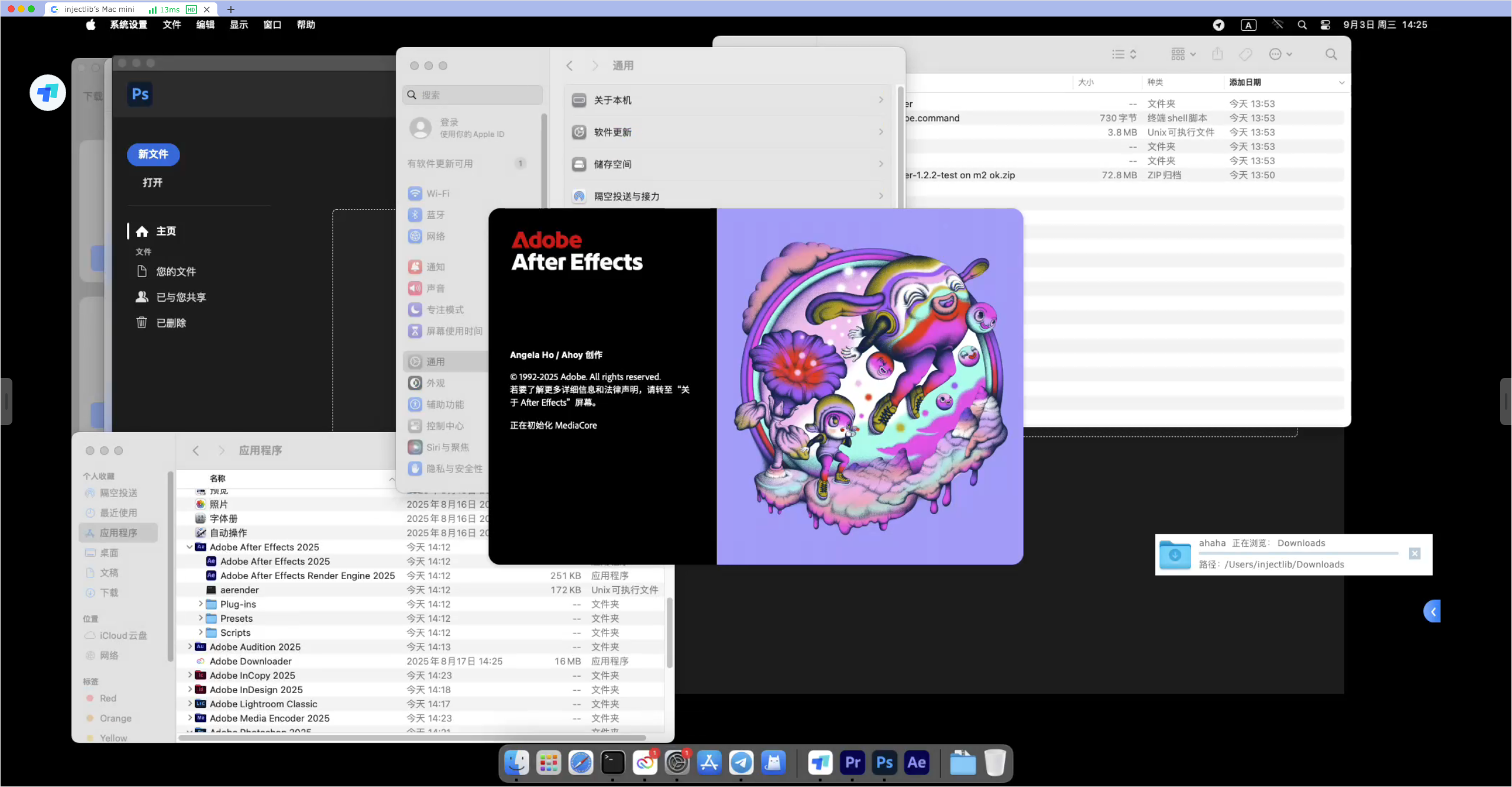 That's it.
- If there is no response, refer to "Q7" and select "Open Anyway" in Settings.
Q9: "Adobe Illustrator 2025" is damaged and cannot be opened. / "xxxx" is damaged and cannot be opened.
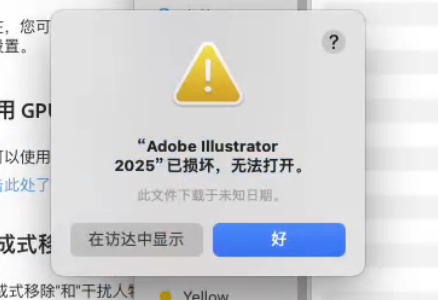
Astute readers will notice this is different from Q8 — there is no Open button.
Solution:
Click the OK button.
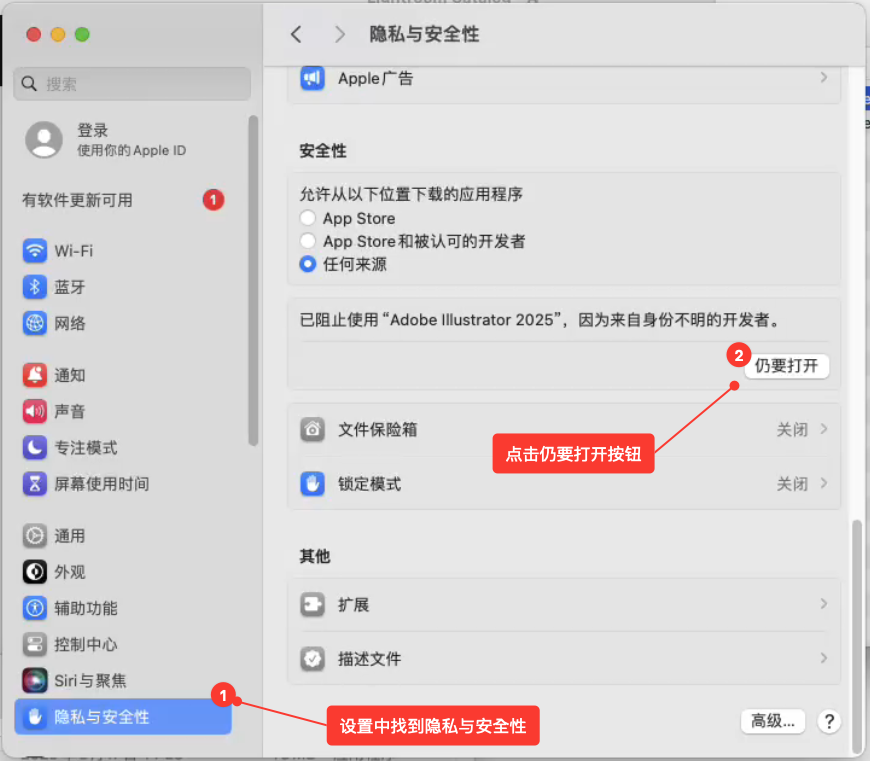 First open Settings, go to Security & Privacy.
Find Security, click the "Open Anyway" button.
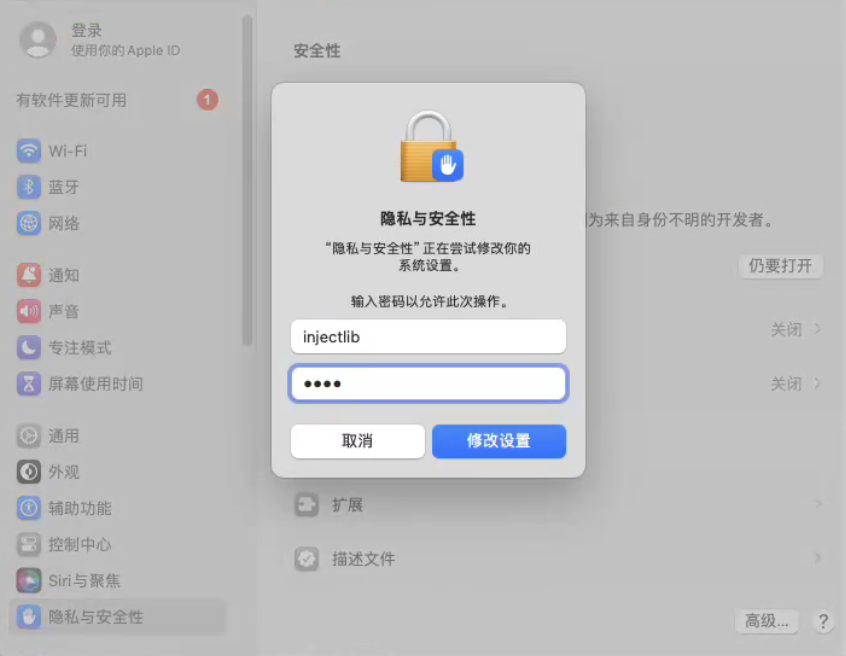 Enter your administrator password to authenticate.
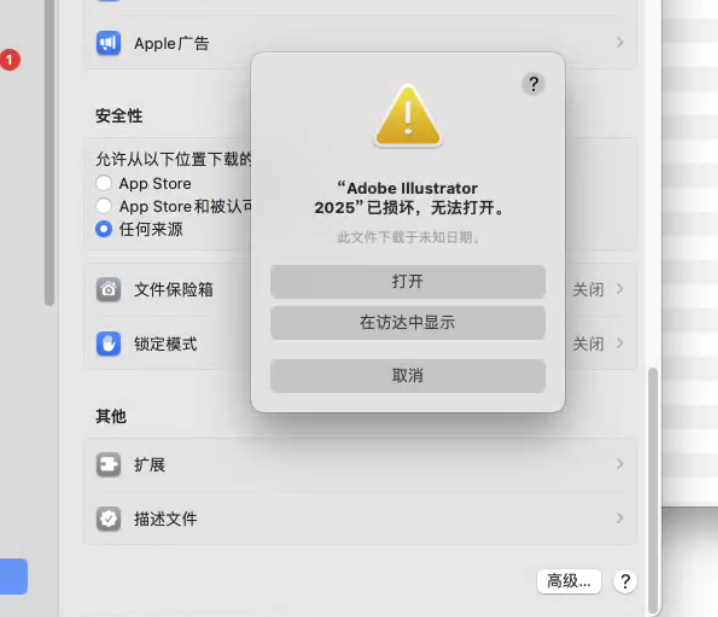 The familiar screen appears. Click "Open" to run normally.
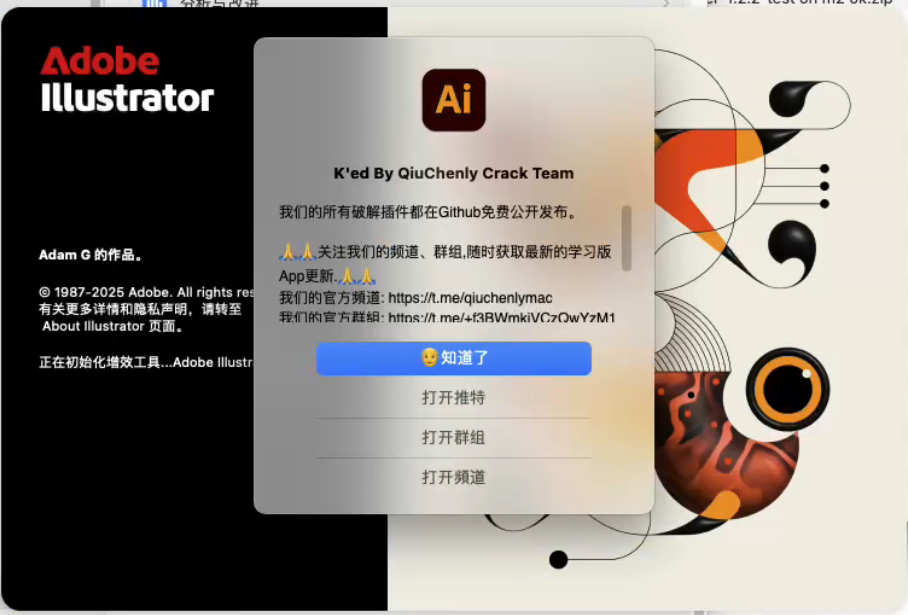 Successfully opened
Installing Adobe Installer Offline Product Deployment
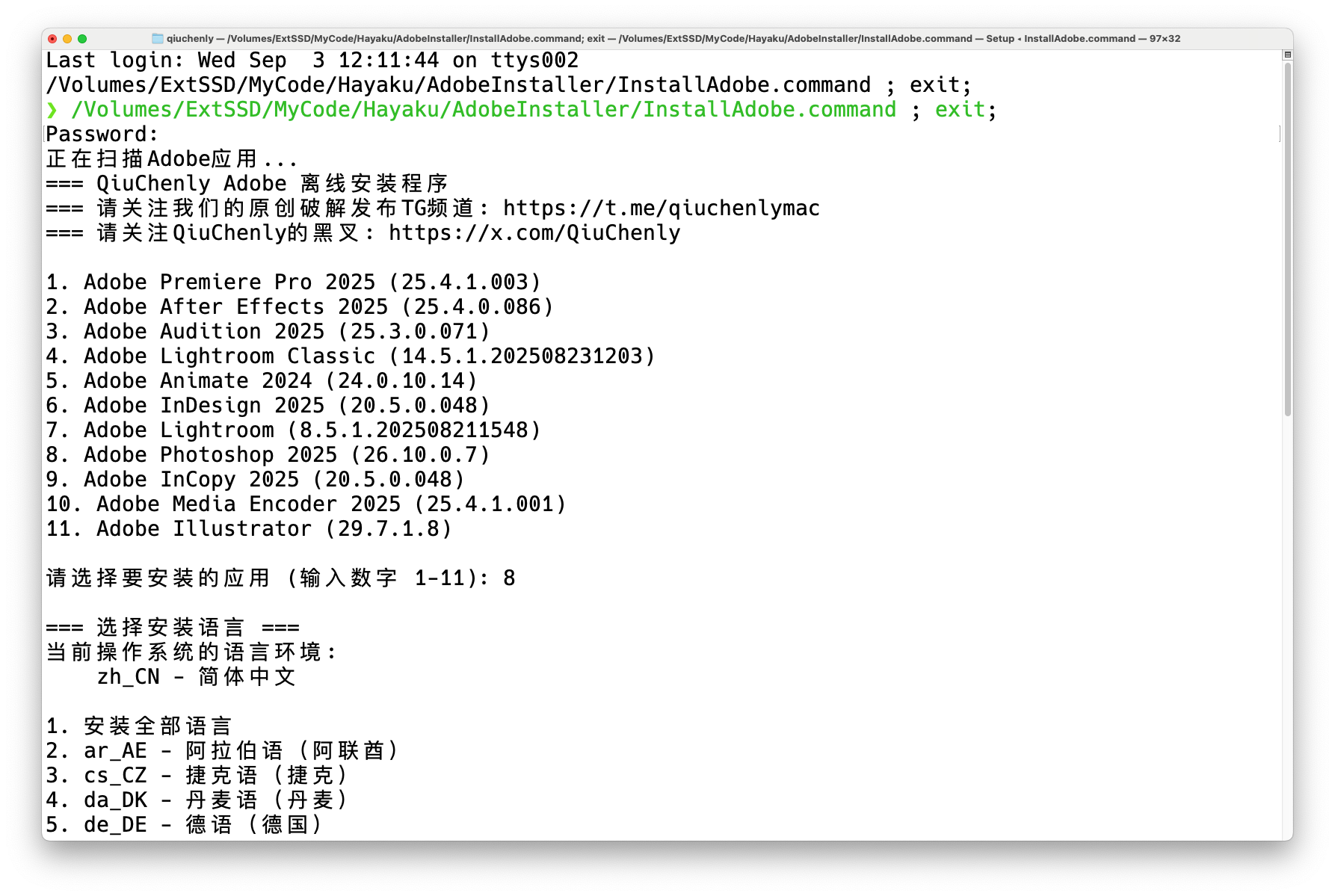
Since sudo privileges are required, enter your Mac password when prompted with "Password:".
- Select the product you want to install (this depends on which versions are included in the offline installer you downloaded)
- Select the language you need (this depends on the packager's download behavior; qiuchenly recommends downloading all language packs at once)
- Start installation
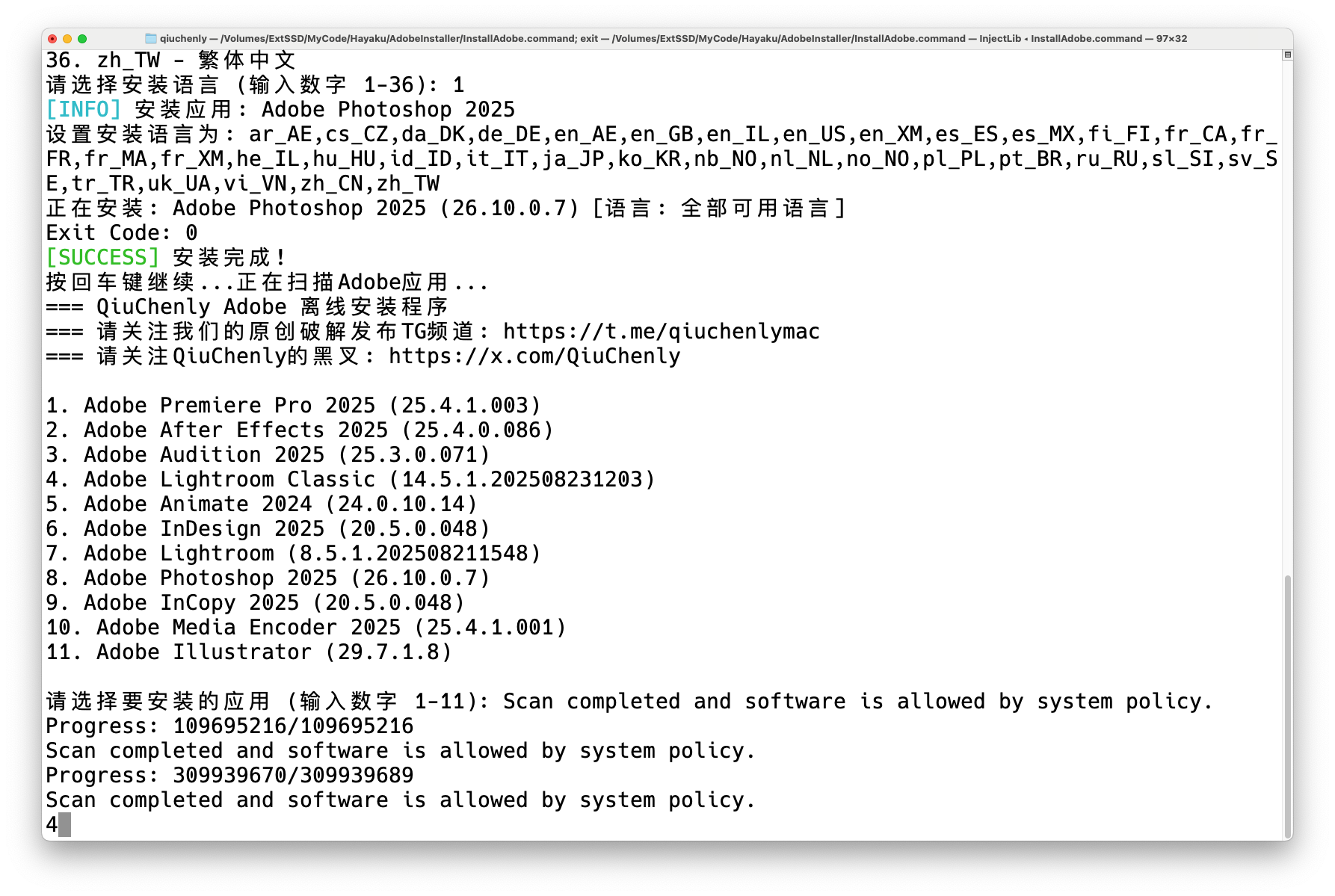 Note: The following content indicates Adobe is checking the app file integrity, which is normal and can be ignored:bash
Scan completed and software is allowed by system policy. Progress: 109695216/109695216 Scan completed and software is allowed by system policy.